Setup Docker environment
Spin up an eIOU node in Docker. The container auto-generates a fresh wallet at first boot — you don't need to run any setup commands; you just need a running container.
Docker Setup
Run the eIOU image in Docker. The container generates a wallet on first boot, writes the seed phrase to a secure tmpfs file (never to the logs), and exposes a Tor hidden service by default so other eIOU nodes can connect over .onion (HTTP/HTTPS surfaces are available with extra setup). Once it's running, every eiou … command in the rest of this demo runs through docker exec -it <container> … from your host shell.
Prerequisites
• Docker installed and running on your host
• Host port 80 free (the demo's -p 80:80 flag maps it to the container's GUI; pick a different host port if 80 is in use)
• Basic familiarity with the terminal
Docker Commands
Note
In this tutorial we use the names Alice, Bob, Carol, and Daniel to represent different users / nodes. The contacts walkthrough assumes Bob is also running. Repeat Step 1 with --name Bob, -p 8080:80, and replace every Alice- volume prefix with Bob-. Each node must have its own seven-volume set.
Run the eIOU container
Pick whichever method matches your setup. The flags do three things:
- --name Alice — the container's local name; you'll use it with docker exec.
- -p 80:80 — exposes the wallet GUI on the host so you can open it in a browser at http://localhost.
- -d — runs in the background; --restart unless-stopped keeps it alive across reboots.
- Seven -v mounts keep Alice's wallet, plugins, backups, recovery state, and TLS identity together across container replacement.
The demo uses Tor (.onion addresses) for inter-container communication. Tor is the canonical, privacy-preserving transport — no extra setup needed, the container generates a .onion address automatically on first boot. HTTPS is intentionally not exposed: without a hostname configured the container has no SSL certificate, and a real HTTPS surface needs proper certificates (publicly-trusted chain, matching hostname, valid expiry, etc.) that are out of scope for a demo. If you do need HTTPS, set a hostname after the container starts with eiou changesettings hostname <url> (which generates a self-signed cert) — see the Docker Configuration reference under /docs/reference/docker-configuration.
Docker pulls the image from Docker Hub on first run:
Verify the container is running
List running containers; you should see Alice with status Up.
Capture the seed phrase and auth code
On first boot the container generates a 24-word BIP39 seed phrase. For security, the seed is deliberately not written to docker logs — Docker captures stdout/stderr, so the wallet writes the seed to a memory-only tmpfs file at /dev/shm/eiou_wallet_info_<suffix> with a 15-minute TTL. The same file also contains the authentication code you'll need to sign in to the GUI (you can also retrieve the auth code on its own via the eiou info --show-auth CLI command in Step 4). Read it once and back it up immediately — after the TTL expires the file is auto-deleted and the seed cannot be recovered.
First, list /dev/shm/ to find the exact suffix on the wallet-info filename:
Then read that file, substituting the suffix you just saw:
The container also prints the exact path you should read in its startup log, so you can copy/paste it directly:

The file holds the 24 words plus the wallet's authentication code. Copy both to a secure password manager. Without the seed phrase, lost or corrupted wallet data is unrecoverable. The 15-minute TTL is part of the security model — the longer the seed sits in tmpfs, the more chances something else can read it.
Open the wallet GUI
The rest of this demo runs through the wallet GUI in a browser, not the CLI. The GUI is reachable two ways — either works. You'll need the auth code for the login screen; retrieve it from the CLI with:
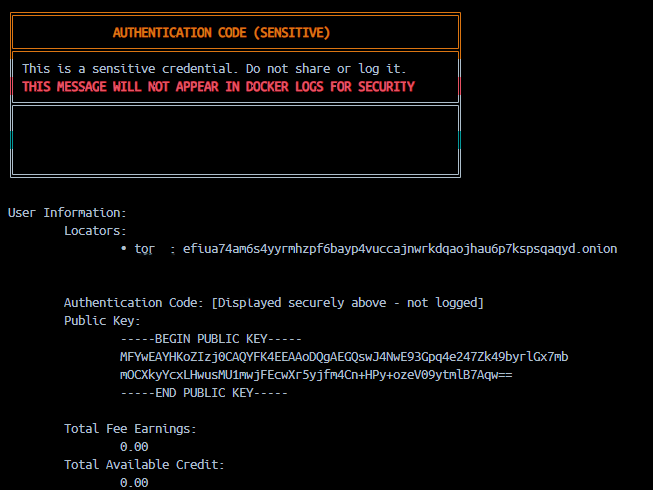
The auth code is rendered to the TTY only — it's deliberately stripped from docker logs, so you have to copy it from your terminal session right after running the command. (We've also masked it out of the screenshot above for the same reason.)
- Local browser via HTTP — with -p 80:80 in your run command, open http://localhost. If you started a second container (e.g. Bob with -p 8080:80), reach its GUI at http://localhost:8080.
- Tor Browser via .onion — open Alice's onion address (run docker exec -it Alice eiou info and copy the Tor: line) in Tor Browser. This works without any port mapping and matches how a real-world peer would reach your node.
That's the setup. Continue to Settings & configuration next to walk through the GUI flow.