Send & receive eIOUs
Walk through the basic transaction flow in the wallet GUI with Alice and Bob already added as accepted contacts (per the previous page): Alice sends an eIOU from the Payment tab, both sides see the new totals on the Dashboard, and the transaction shows up in the Activity tab.
Send an eIOU
On Alice's wallet, switch to the Payment tab and use the New eIOU form. Pick Bob from the Recipient autocomplete, fill in the amount, leave the currency on the per-contact default (VWL if you accepted VWL), and submit.
- Recipient — search by contact name or address. The wallet checks for direct credit first; if there isn't enough, it broadcasts a P2P request and signs once a route returns.
- Address Type — pick Tor, HTTP, or HTTPS for the contact's address (Tor by default for the demo).
- Recipient Address — auto-fills from the selected contact, or you can paste an address directly for ad-hoc P2P sends.
- Amount — positive number; decimals allowed (display precision controlled by the displayDecimals setting).
- Currency — populated from the contact's accepted currencies.
- Description (Optional) — a short on-chain memo.
The New eIOU form on Alice's Payment tab
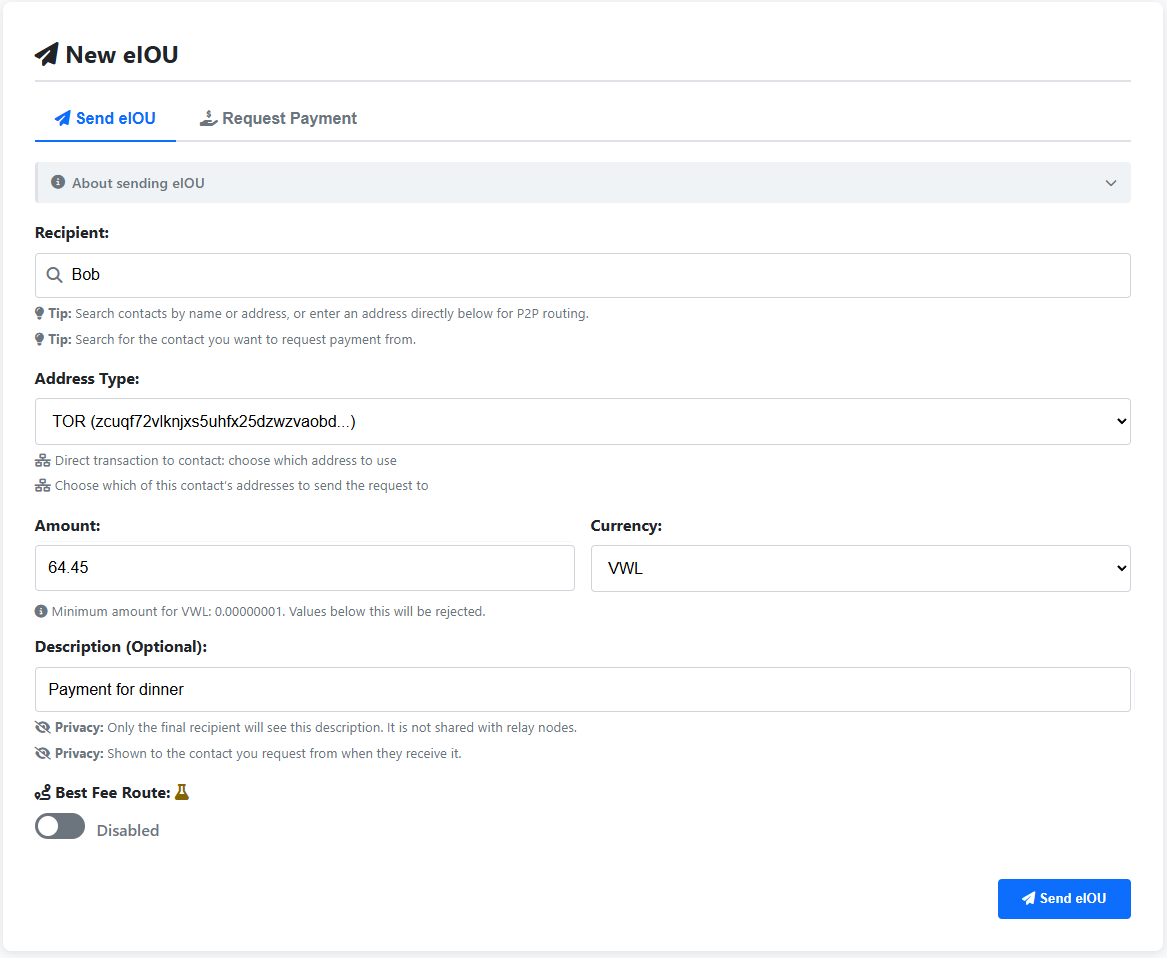
Submit. The wallet shows a confirmation modal with the resolved route and any P2P relay fees, then commits when you confirm. You'll see a success notification and the new transaction will appear in the Recent Transactions section on the Activity tab.
Bob doesn't need to do anything to receive — incoming eIOUs are pushed and accepted automatically once the contact relationship is in place. He'll see the new transaction in his own Activity tab the next time he refreshes.
Check the balance
Switch back to the Dashboard tab. The Wallet Information panel at the top shows three stat cards — Total Balance, Total Fee Earnings, Total Available Credit — that update as soon as the transaction commits. Open Bob's contact detail (click his row in Your Contacts, then the Transactions tab inside the modal) to see the per-contact balance.
Wallet Information stat cards on Alice's Dashboard
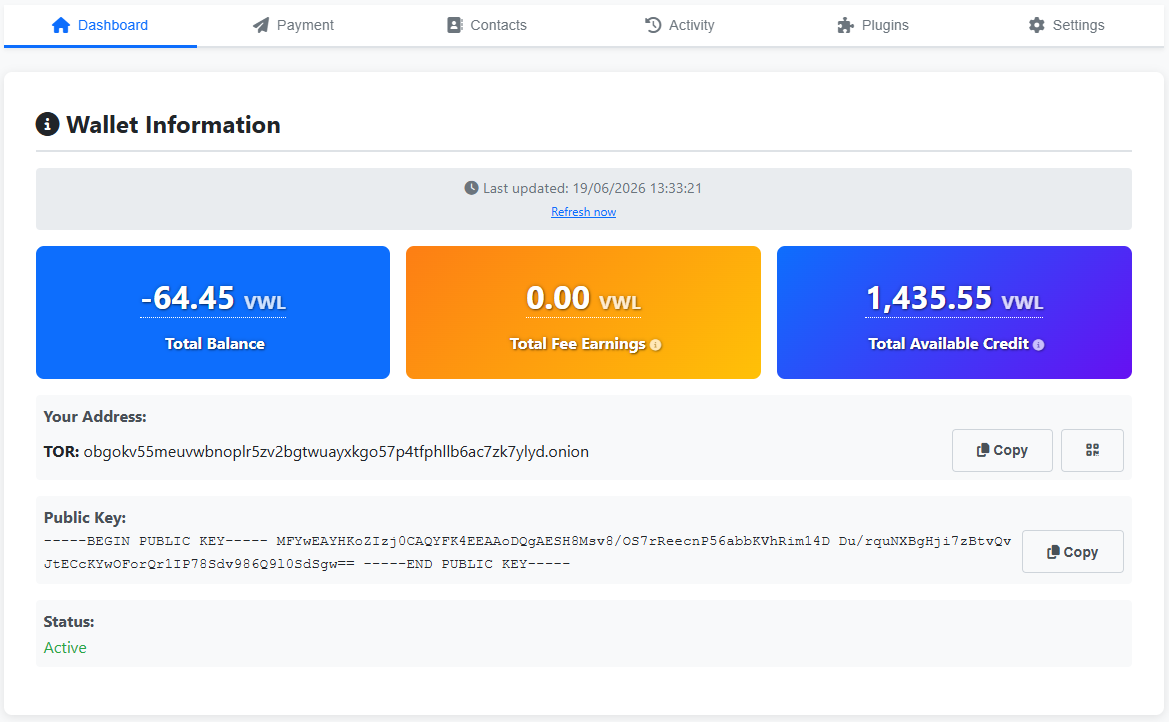
The same view on Bob's wallet is the mirror — Bob's Total Balance with Alice is the negative of Alice's with Bob.
Activity tab
The Activity tab's Recent Transactions section shows every transaction Alice's wallet has been part of — both directions, across every contact and routing hop (direct sends, P2P relays, contact-request transactions). Filter by direction, type, or status, search by counterparty name / address / description, or click any row to open the full transaction detail.
- Recent Transactions — the main list, refreshes via the Refresh button at the top
- Failed Messages — anything that exhausted automatic delivery retries (click Refresh in that section to recheck)
The Activity tab
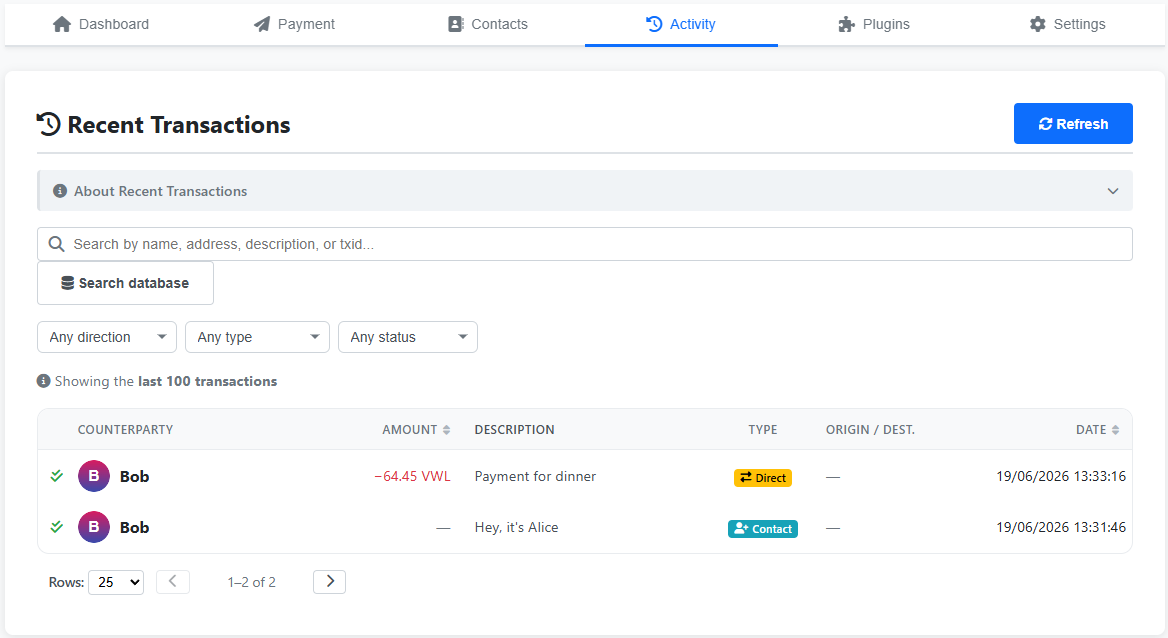
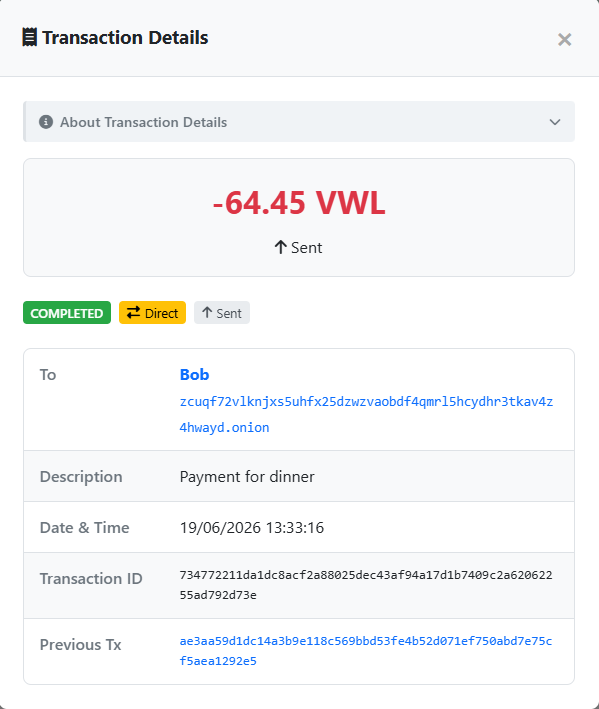
Each row links to a transaction-detail modal showing the route, signatures, fees, and the full description. The same view on Bob's wallet shows the same transaction from his perspective (sent → received).
For more documentation (CLI), see the docs page.