Settings & configuration
Walk through the basic settings flow in the wallet GUI: sign in, find the Settings tab, change a setting, and locate the in-app help.
Sign in to the GUI
Open the wallet GUI in your browser (either http://localhost if you mapped port 80, or via Tor Browser at the node's .onion address — see Setup Docker for both paths). The login screen at /gui/ asks for an authentication code; paste yours and click Access Wallet.
- The auth code was generated alongside your seed phrase at first boot — it's in the same /dev/shm file you read in Setup Step 3, or you can fetch it via the CLI from Setup Step 4.
- Tick Remember Me to keep the session for the configured TTL; otherwise the session is single-use and rotates on every sign-in.
- Auth codes are session-bound and never sent to remote nodes. Treat them like a local password.
The login screen
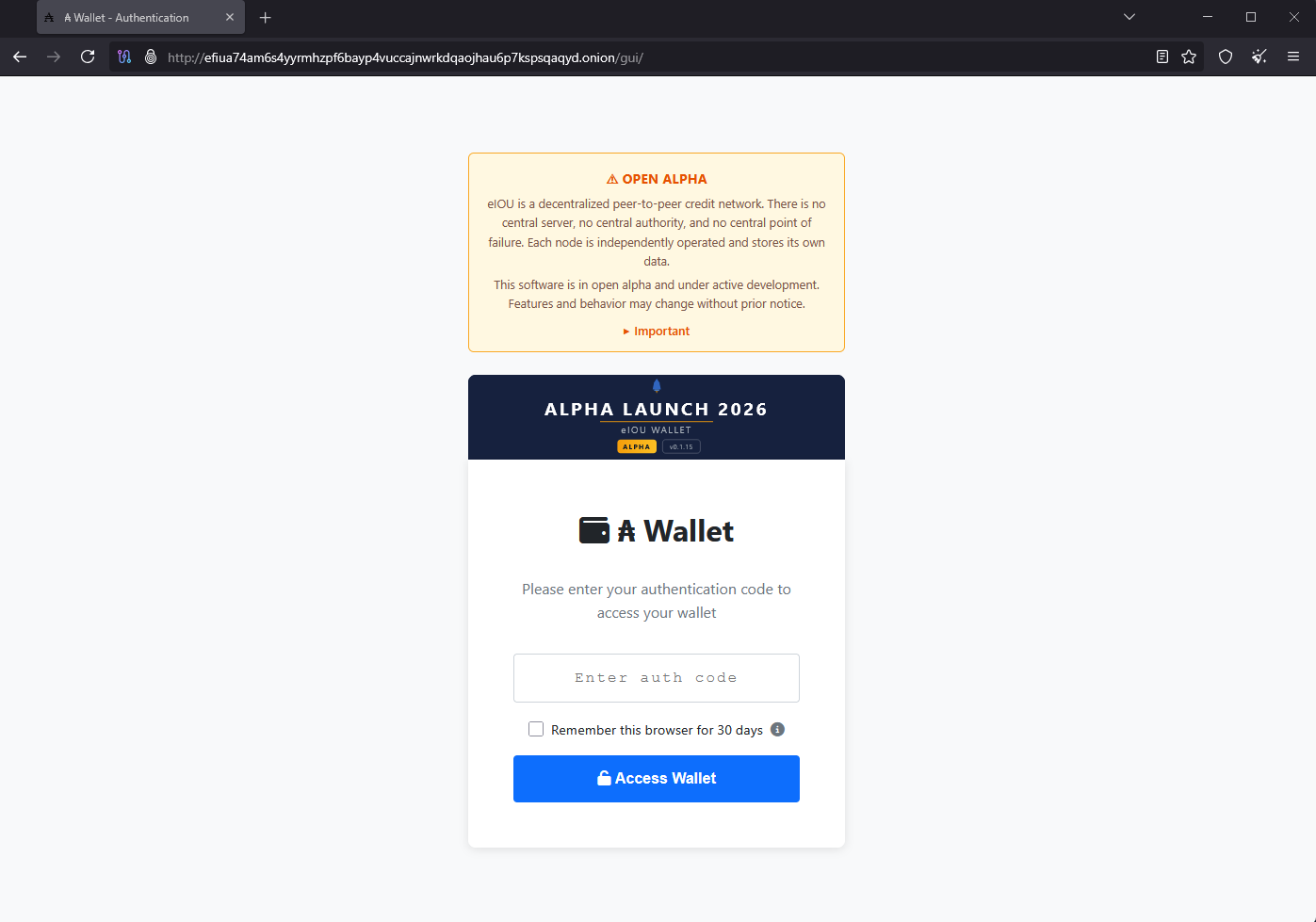
After signing in you land on the Dashboard tab. The top navigation has five tabs: Dashboard, Payment, Contacts, Activity, and Settings — every interaction in the rest of this demo happens inside one of those.
Wallet Settings
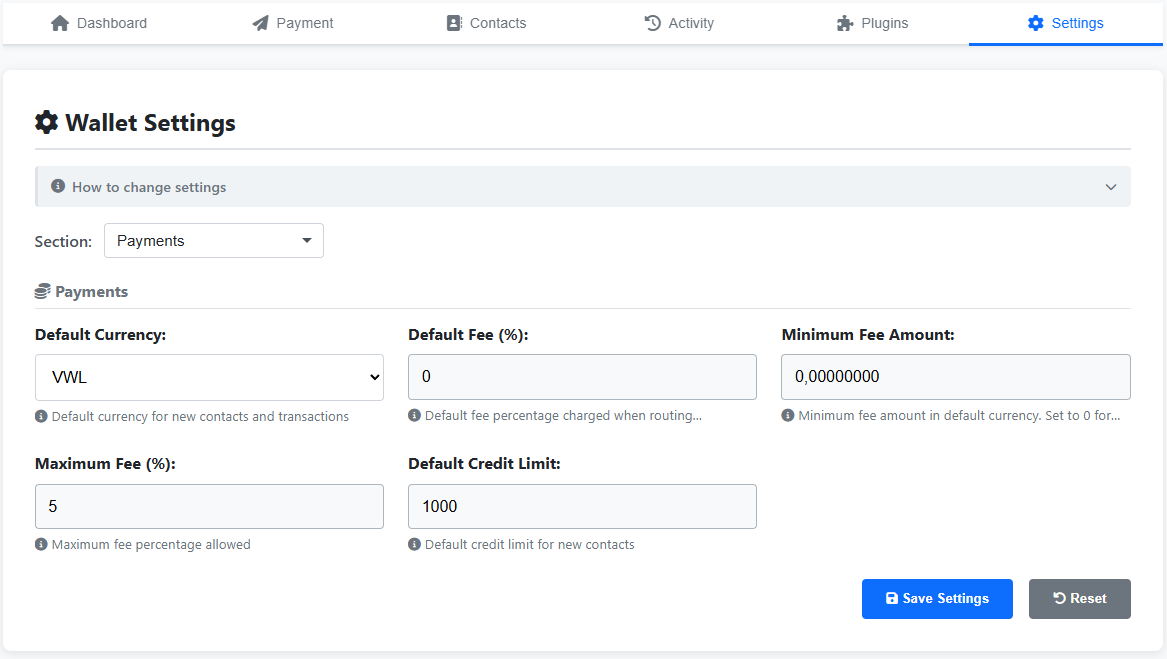
Open the Settings tab. The Wallet Settings section is one form with one Save Settings button at the bottom. Use the Section dropdown at the top of the form to navigate between groups (Currency & Fees, P2P & Network, Backup & Logging, Display, etc.); your edits are kept as you switch sections — nothing is lost.
- Section dropdown — pick which group of settings is in view
- Edits in any section persist as you switch — toggles, dropdowns, and number fields all retain their pending values
- Save Settings — one button at the bottom commits everything you changed across every section
The Settings tab
Changing a value
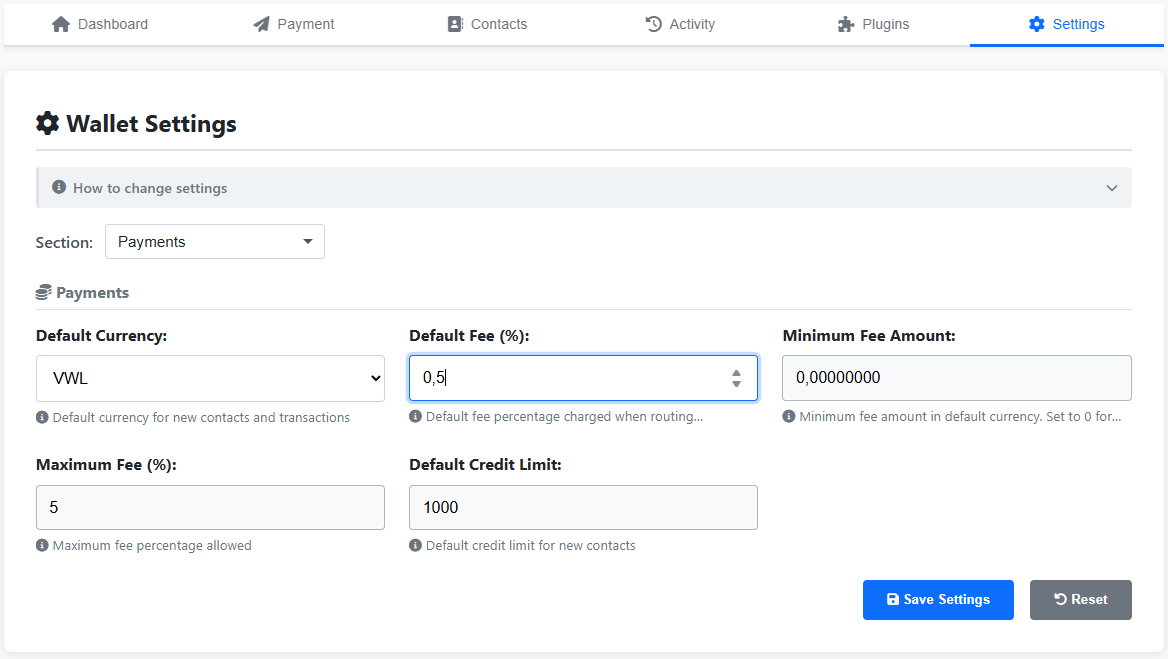
As an example, switch to the Payments section and change Default Fee (%) from its default of 0 to 0.5. Click Save Settings at the bottom. The wallet validates the input (rejects negative values, values above your max-fee ceiling, etc.) and shows a confirmation when the new value is persisted.
Below Wallet Settings the same Settings tab also exposes API Keys (Create API Key…), Plugins (Refresh / enable / disable), and a Debug Information section. For the full key catalogue (~50 settings, grouped by category) see /docs/settings.
Find help in-app
Most GUI tabs have an About this section block at the top — for example About Your Contacts on the Contacts tab, About Recent Transactions on the Activity tab, How to change settings on the Settings tab. These short explainers cover what the tab is for and how to use it.
About-this-tab panels
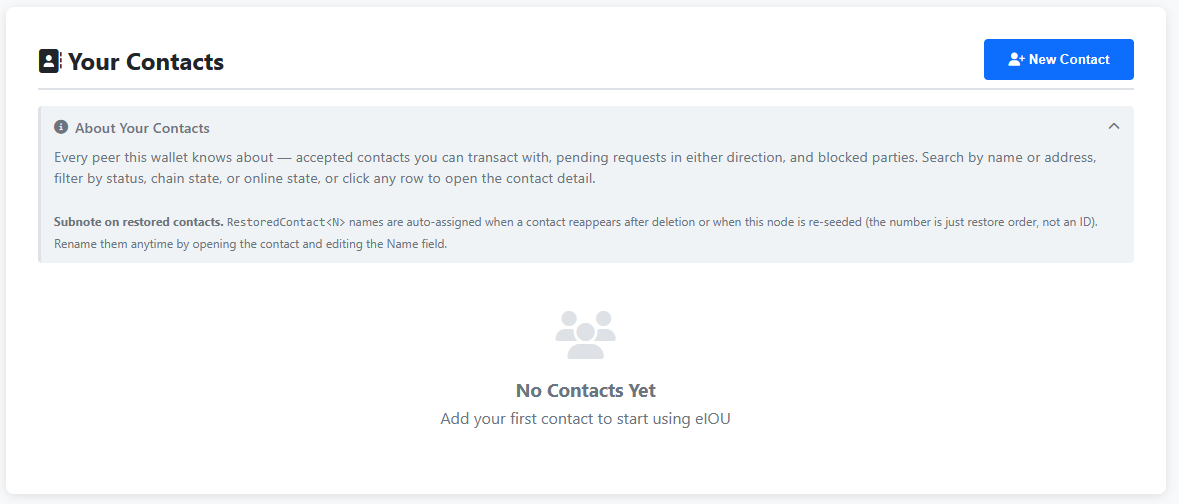
If the in-app help doesn't cover what you need, the CLI reference at /docs/* is the deep documentation — every GUI action has a corresponding eiou ... command, and the CLI reference covers all of them.